1. What a Tiny PC is
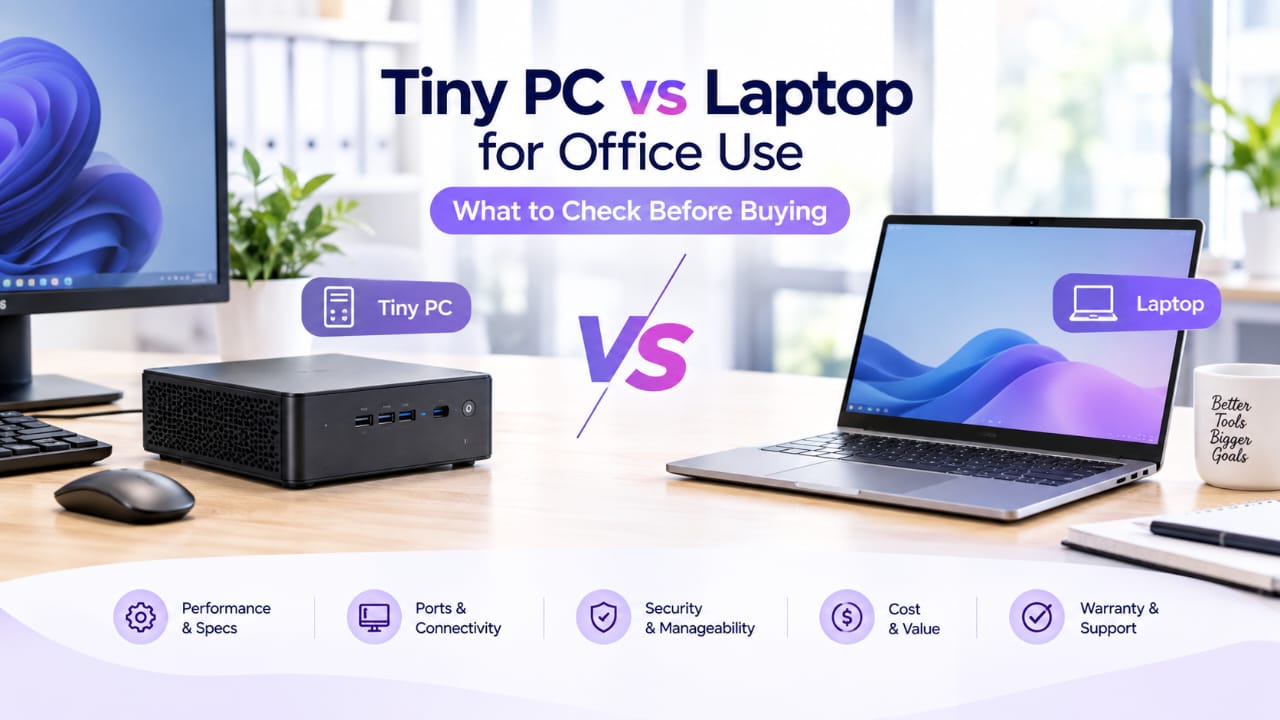
A Tiny PC (also sold as a mini PC, micro PC, or small-form-factor desktop) is a full desktop computer built into a case roughly the size of a paperback book, sometimes smaller. Inside, it uses laptop-class components — the same kind of low-power processors and compact storage found in ultrabooks — rather than the larger parts a full-tower desktop can accommodate. Most are designed to sit flat on a desk, stand on a small foot, or mount directly to the back of a monitor using a VESA bracket, which is where a lot of their appeal for office use comes from: the computer effectively disappears behind the screen.
Because the case is small, a Tiny PC has no built-in display, keyboard, mouse, or battery — unlike a laptop, it's entirely dependent on whatever peripherals and monitor you connect to it. It also has less room for airflow and expansion than a full desktop tower, which matters more for some workloads than others (see Section 5).
2. When a Tiny PC may fit better
A Tiny PC tends to make sense where the computer needs to be present but not seen, and where the workload is genuinely light:
- Reception and front-of-house desks, where a bulky tower is awkward and a laptop's smaller screen and battery aren't needed since the machine never moves.
- Digital signage and information displays, where the "PC" is really just driving a screen and doesn't need a keyboard attached most of the time.
- Hot-desking and shared workstations, where the monitor, keyboard and mouse stay put and only the person changes — a Tiny PC mounted behind the screen keeps the desk clear.
- Home offices with limited desk space, where a permanent, single-location setup makes a mounted Tiny PC tidier than a laptop-plus-dock arrangement.
- Basic office work — email, web browsing, spreadsheets, video calls — that doesn't demand a powerful graphics card or heavy multitasking.
3. When a laptop may fit better
Equally, there are situations where a laptop is the better tool, not just the more familiar one:
- Any role that involves moving between locations — meeting rooms, site visits, working from home some days and the office on others. A Tiny PC is fixed to wherever its monitor and peripherals are.
- Workloads needing a dedicated, higher-power graphics card, video editing, or CAD-style work, where a laptop built for that purpose (or a full desktop — see Section 9) usually has more thermal headroom than a machine the size of a paperback.
- Situations with no desk at all, or where the "workstation" changes daily.
- Anywhere a built-in webcam, keyboard and screen genuinely reduce the number of things that can go wrong or get lost, since a laptop is one self-contained unit rather than a PC plus several separate peripherals.
- Power cuts or unreliable mains, where a laptop's battery keeps it running; a Tiny PC drops off immediately like any desktop.
4. Ports and display outputs
This is the section worth checking most carefully, because it varies enormously between individual models and is easy to assume rather than verify.
For a Tiny PC, don't assume:
- How many displays it can drive at once, or in what resolution. Some support two independent 4K outputs; others are limited to one, or to a lower resolution on the second port. This depends on the exact model's chipset, not on the fact that it's "a modern PC."
- Which video ports are actually present — HDMI, DisplayPort, USB-C with DisplayPort Alt Mode, or (on many older units) VGA, in some combination that differs unit to unit.
- How many USB ports, and of what type and speed, are available for a keyboard, mouse, webcam, and any peripherals a role needs.
- Whether wired Ethernet is included, or whether it relies on Wi-Fi only — relevant for anything security-conscious or bandwidth-sensitive.
For a laptop, the equivalent unknowns are:
- Whether it can drive an external monitor at all, and how many. Many laptops support one external display through HDMI or USB-C; genuine dual-external-monitor support (from the laptop alone, without a dock) is a feature of specific models, not something to assume.
- What ports are physically present, especially on slimmer models, which increasingly rely on USB-C for everything, including charging.
None of this is a flaw in either format — it's simply not standardised, and the only reliable way to know is to check the exact model's specification sheet against what a role actually needs to plug in.
5. Workload matching
The honest starting point is that "how powerful is it" matters less than "what is it actually going to do." A Tiny PC built around an efficient laptop-class processor handles office applications, web browsing, video calls and digital signage comfortably. Where it tends to struggle — again, depending entirely on the specific model and chip — is sustained heavy workloads: large-scale video editing, 3D rendering, or anything that keeps the processor at full load for long periods, where the compact case has less room to dissipate heat than a full tower.
A useful way to frame the decision: match the machine to the heaviest thing it will regularly be asked to do, not the average. A reception PC that only ever runs a booking system and a browser is well served by a modest Tiny PC. A design workstation that occasionally needs to render video is better served by hardware with room to keep a demanding chip properly cooled — which points toward a full desktop or a custom build rather than a compact one.
6. Upgradeability and maintenance
Don't assume a Tiny PC's RAM or storage can be upgraded later. Some models use standard SO-DIMM memory and an M.2 or 2.5" drive bay that's straightforward to open and swap; others solder RAM directly to the board or use storage that's difficult to access without specialist tools. This varies by manufacturer and even by model generation within the same manufacturer, so it needs checking against the specific unit, not assumed from the fact that it "looks like a normal small computer inside."
The same caution applies to laptops — some allow a RAM or SSD swap through an access panel, others don't have anything user-serviceable at all.
Where a machine does turn out to need more life than an upgrade can give it, that's the point to weigh a repair against replacement, covered in the school-procurement side of this in more detail elsewhere on the blog.
7. Security and deployment
Two separate things need checking here, and it's easy to conflate them.
Windows 11 eligibility is not just about processor speed. Microsoft's official minimum requirements include a processor from their approved list — a chip can meet their basic speed and core-count figures and still be excluded if it isn't on that list, 4 GB of RAM, 64 GB of storage, a UEFI firmware with Secure Boot capability, and specifically TPM version 2.0. That last one is the detail that catches out a lot of older small-form-factor and mini PCs: TPM 2.0 support depends on the exact motherboard and chipset, and on some older units it exists in the hardware but isn't enabled by default in the BIOS. This needs checking on the specific model, not assumed either way.
It's also worth knowing that Windows 10 reached the end of Microsoft's mainstream support on 14 October 2025. A machine still running Windows 10 that isn't eligible for Windows 11 is now outside that support window, which matters for the second point below.
Ongoing security updates are a separate, ongoing question rather than a one-time check at purchase. The NCSC's guidance on keeping devices and software up to date is direct about this: software and devices are supported for a limited period before manufacturers stop updating them, and "you should replace unsupported software and devices as soon as you are able." Their advice, worth applying to a Tiny PC or a laptop equally, is to keep automatic updates enabled for the operating system, browser, any office applications, and antivirus software, and — when choosing a new device — to consider how long the manufacturer has typically supported similar products, since that determines how long it will keep receiving updates after purchase.
Neither of these is a claim this article can make on behalf of any specific machine. They're the two questions worth putting directly to a supplier before buying: is this model Windows 11 eligible as sold, and what operating system and security-update life does it realistically have left.
8. Total setup cost
The unit price of a Tiny PC or a laptop is rarely the whole cost of getting a working desk set up, and it's worth totalling deliberately rather than discovering the gaps after ordering.
For a Tiny PC, budget for what it doesn't include unless specifically stated: a monitor, keyboard, mouse, and — if it's being mounted behind a screen — a VESA mounting kit and the right cable lengths to reach it. It's also worth confirming whether an operating system licence is included or needs adding separately.
For a laptop, the equivalent gaps are usually smaller but not zero: a second monitor if the role needs one, a proper stand or dock for anyone using it as their main all-day machine, and — again — confirming what's actually included with the unit as sold.
Neither format has a fixed "true cost" that applies generally; it depends entirely on what's already sitting on the desk and what the specific listing includes.
9. Tiny PC versus desktop versus custom build
Where this often gets muddled is treating "desktop" as one category. In practice there are three distinct shapes worth telling apart:
- Tiny PC — smallest footprint, laptop-class internals, least room for a powerful graphics card or extensive upgrades, ideal where the computer needs to disappear behind a screen.
- Full-size desktop — a mid or full tower with room for a proper graphics card, more storage bays, and better cooling for sustained workloads, at the cost of desk space.
- Custom build — a desktop specified component by component for a particular job, from office work through to workstation-grade or gaming performance.
If it's the custom-build route you're weighing, it's worth knowing that MrLaptop's build configurator is set up for standard and RGB tower cases across four build types — gaming, workstation, office desktop, and laptop upgrade — rather than a small-form-factor case. It's a genuinely useful route to a desktop specified for a particular job; it isn't itself a route to a Tiny-PC-sized machine, since the case options are towers.
For a straightforward comparison across the two, browsing current desktops and laptops side by side is the most direct way to see what's actually available at any given time, since stock in both categories changes regularly.
10. How MrLaptop can help
MrLaptop Warehouse stocks a rotating range of refurbished and new laptops and desktops, alongside a custom-build configurator for anyone who wants a desktop specified component by component, and repair services for keeping existing machines running longer. Availability in any specific category — including small-form-factor and gaming machines — changes regularly, so the right first step is checking current listings directly rather than assuming a particular type is in stock.
For a bulk order — several reception PCs, a signage rollout, or a batch of home-office setups — the wholesale enquiry form is the route to a tailored quote covering exact specification, quantity and budget. It's also the right place to ask the specific questions this article raises about any unit under consideration: which ports and display outputs it has, whether it's Windows 11 eligible as sold, what's included versus what needs adding separately, and what remaining update support it has. We'll answer those directly for the specific model in question rather than in general terms.
11. FAQs
Is a Tiny PC as powerful as a laptop?
It depends entirely on the specific models being compared. Tiny PCs use laptop-class processors, so a modern Tiny PC and a modern laptop built around a similar chip perform similarly for everyday office work. Where they can differ is sustained heavy workloads, where a Tiny PC's smaller case has less room for cooling than some laptops — and considerably less than a full desktop tower.
Can a Tiny PC run two monitors?
Some can, some can't, and it depends on the exact model's video outputs rather than on Tiny PCs generally. Check the specific unit's ports and confirm how many independent displays it supports before assuming dual-monitor capability.
Do Tiny PCs come with Windows 11?
Not necessarily, and even where an operating system is included, Windows 11 eligibility depends on the specific hardware. Microsoft's requirements include a processor from their approved list, TPM 2.0, and UEFI Secure Boot support — all of which need checking against the exact model rather than assumed from it being a recent-looking machine.
Is a Tiny PC cheaper than a laptop overall?
Not automatically. A Tiny PC's own price often looks lower, but it doesn't include a monitor, keyboard, mouse, or mounting hardware unless specifically stated, while a laptop is a complete, self-contained unit. The fair comparison is the total cost of what ends up on the desk, not the price of the box alone.
Can MrLaptop help with a bulk order of Tiny PCs or laptops?
Yes — the wholesale enquiry form is the route for a tailored quote covering specification, quantity and budget, whatever the mix of device types. Availability changes regularly, so specifics are confirmed against current stock at enquiry stage rather than assumed in advance.